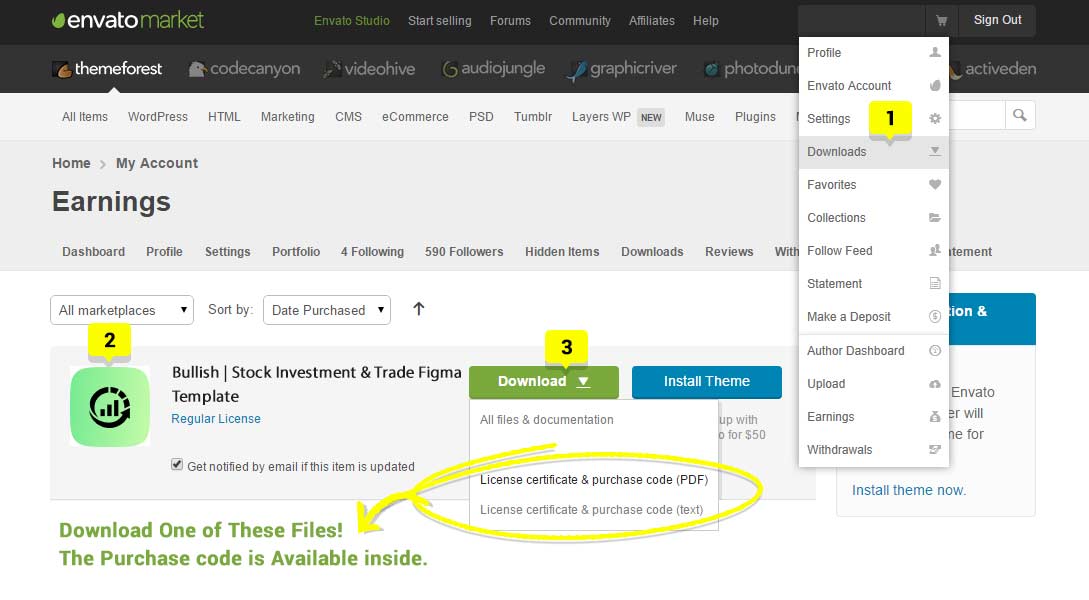
Customization
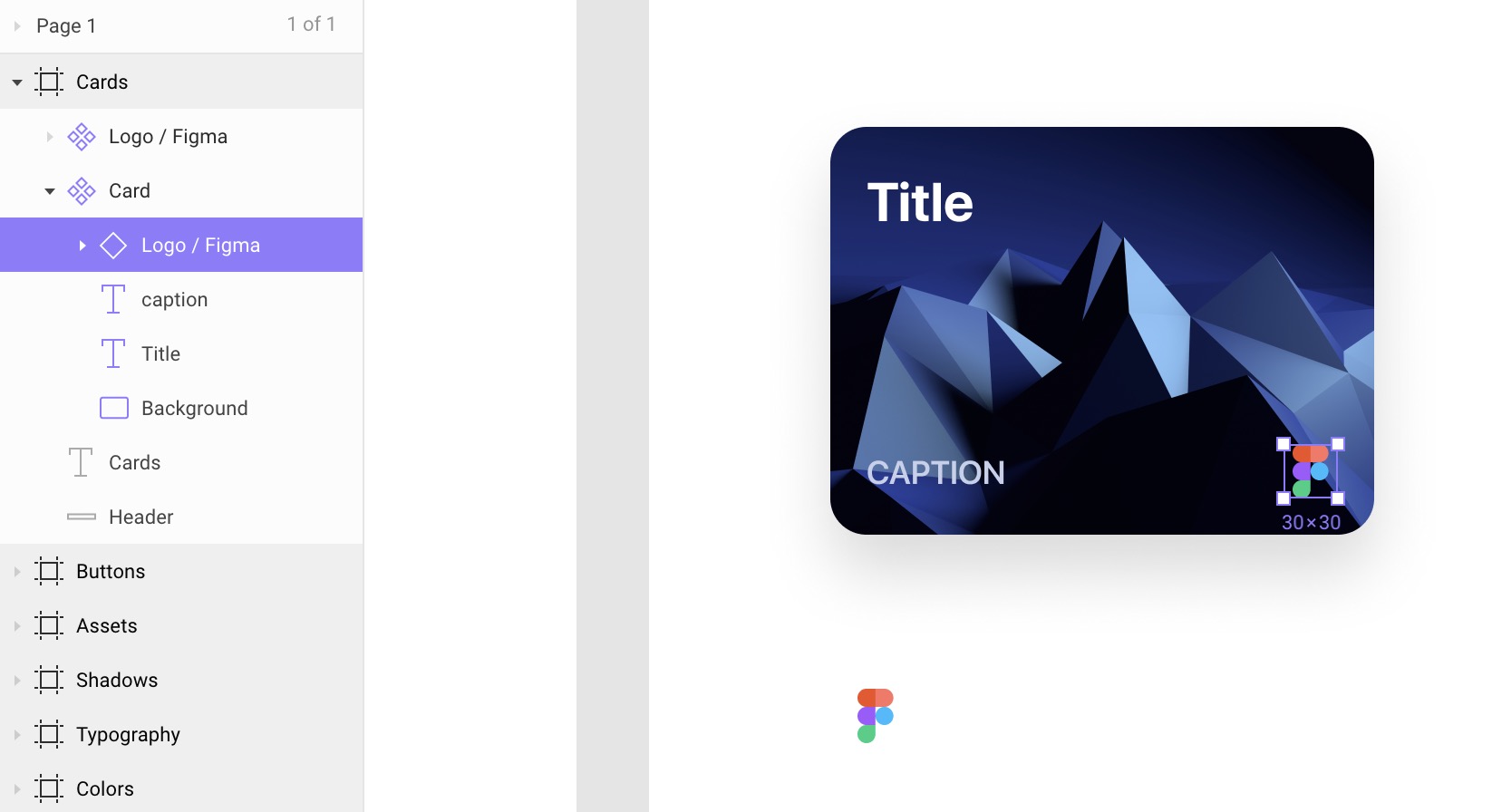
All layer inside the Figma files are grouped & well arranged as mentioned below image:
How To Open/Import figma Files :
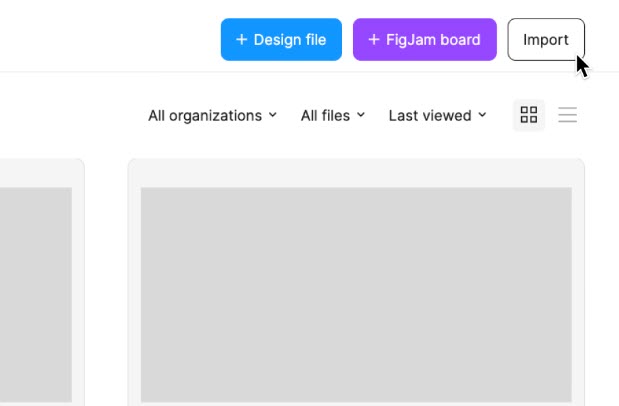
Step 1: Click on the Import File icon next to the New File button in the toolbar.
You can find this in the top-right corner of any File page in the File Browser.
Step 2: Select the file(s) from the dialog window and click Open to start the import process.
Step 3: Depending on the file size this can take a couple of seconds to import. Click Done to return to the File Browser.
How To Make changes to Styles :
You can only edit local styles from the Style Picker. There are a couple of ways to edit a Style:
Step 1: Hover over the Style, then click the adjust icon when it appears
Step 2: Right-click on the Style and select Edit Style from the options.
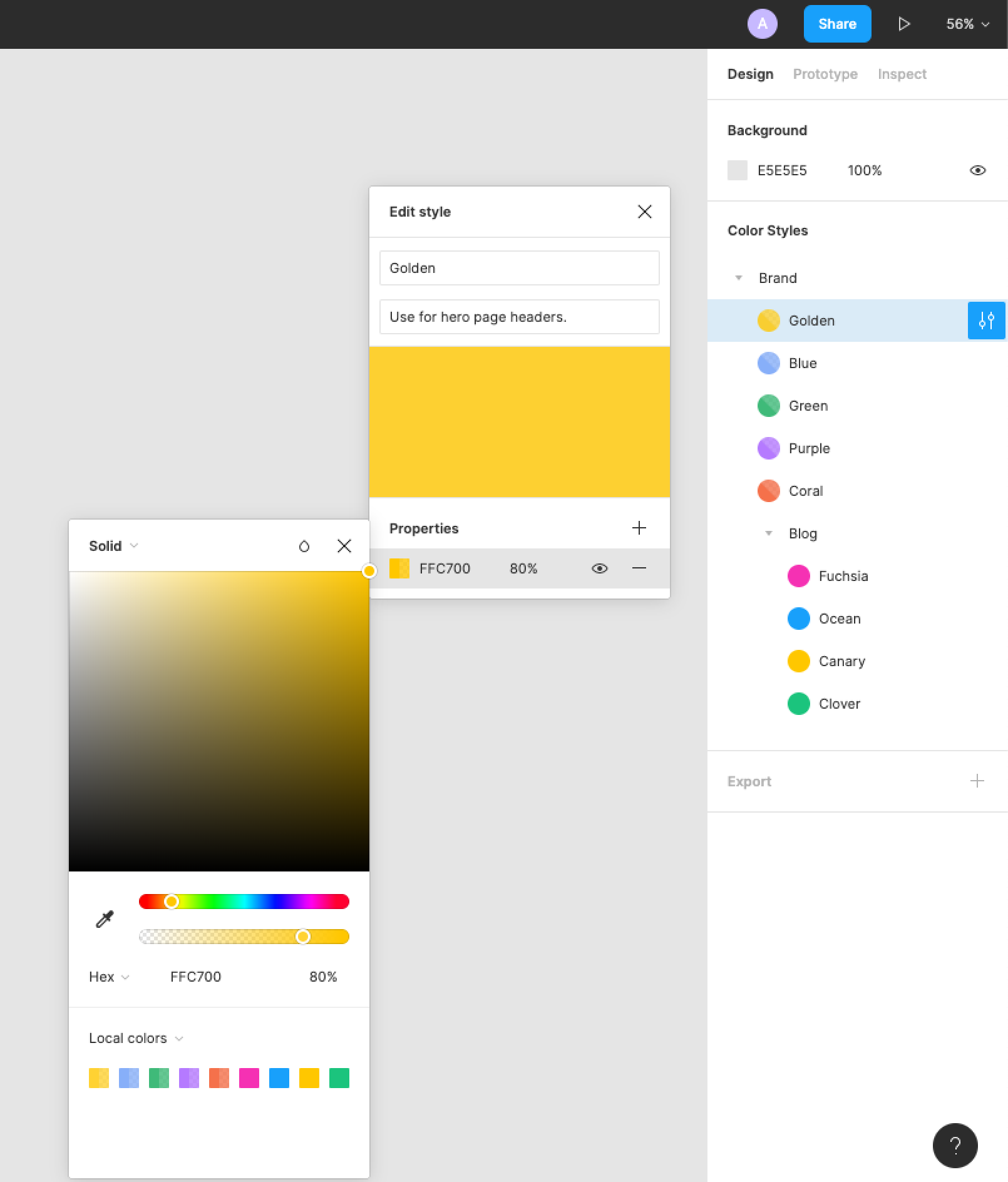
You can edit local styles from the right sidebar and from the style picker.
Right sidebar: hover over the style, then click the adjust icon when it appears.
Style picker: right-click on the style and select Edit style from the options.
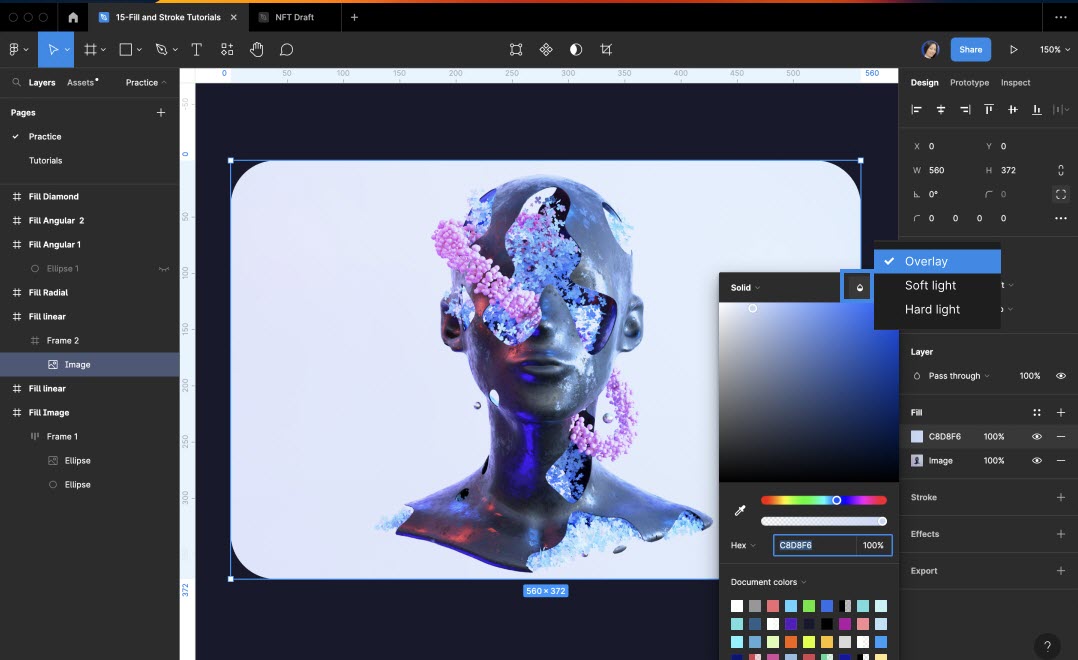
View or update the Name of the style.
Step 1: Add or update the style description, which displays when hovering over the style in the style picker.
Step 2: View or make changes to any properties of the style.
Step 3: Click on the (eye)icon to hide or show the property on any objects the style is applied to
Step 4: Click the - icon to remove the property from the style
How To Importing images in Figma
There are a few different techniques you can follow to import an image in your Figma file. You can just drag and drop the image to the Figma file. You can also either press Ctrl+Shift+K on your keyboard or select the Place Image option in the shape tool.
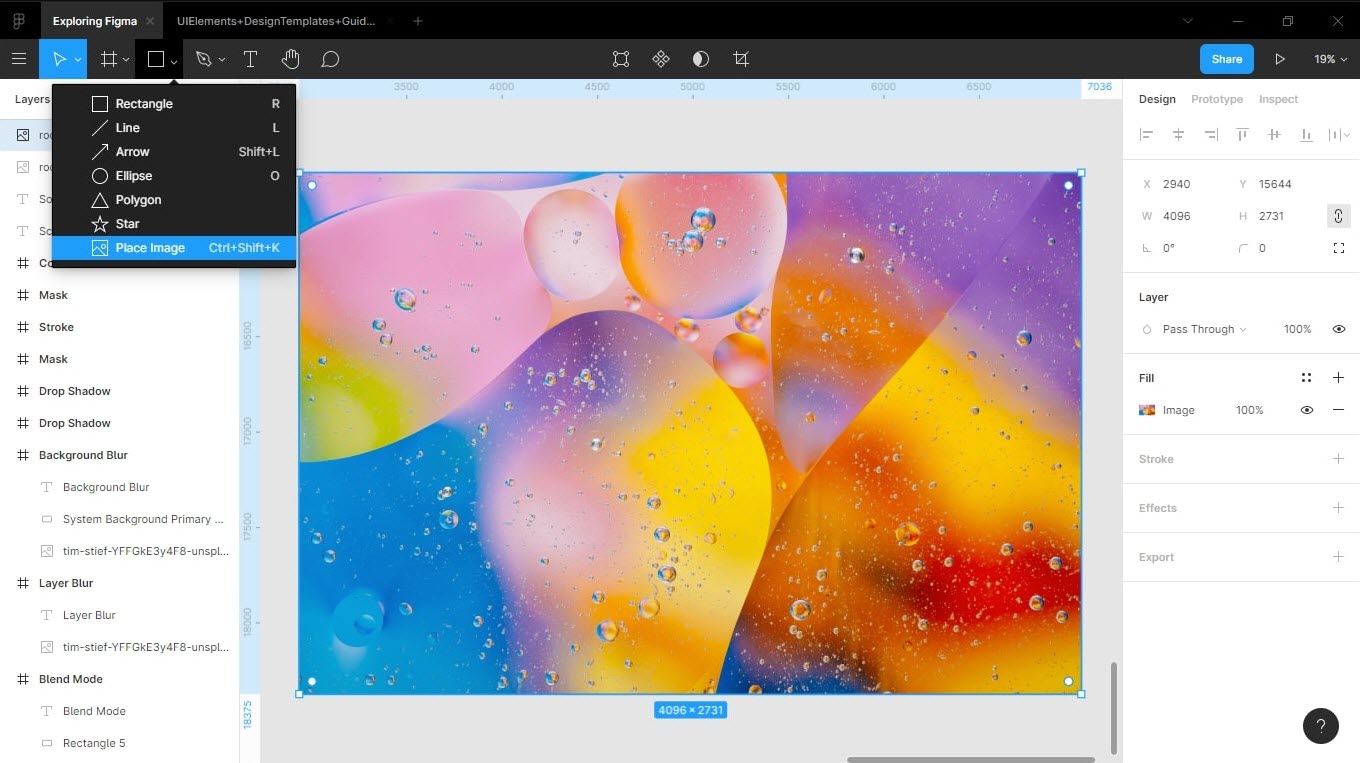
Figma also allows you to drag and drop any assets you'd like to add to your design file. This is very useful when you'd like to add multiple images to the same file.
Editing/customizing images:
Figma allows you to Crop, Resize, or applying filters like Exposure, Contrast, Highlight, Shadows, etc. After importing an image on the Figma canvas press Enter on your keyboard, or you can click on the Crop Image button at the top instead to open the image panel.
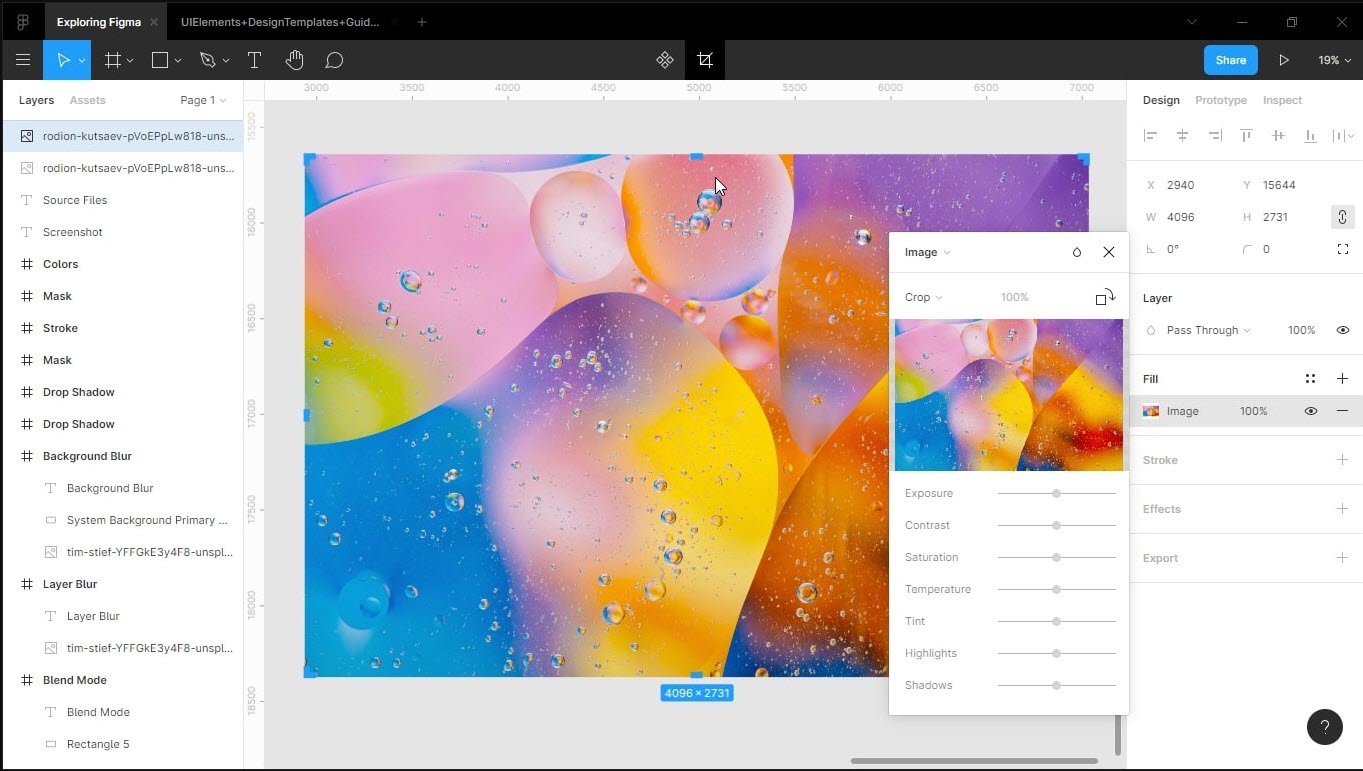
In design, you'll see the use of images everywhere. If we don't optimize our images correctly to use for the web, it would affect the performance of the website. So, it's important to optimize your image correctly, and Figma allows you to do so very easily.